Want to speed up WordPress and finally hit those perfect Lighthouse scores? Most WordPress sites score somewhere between 40 and 60 on Google Lighthouse. The site you’re reading right now scores 100 out of 100 across all four categories – Performance, Accessibility, Best Practices, and SEO – running on a single $10/month VPS. No premium plugins. No managed hosting. No CDN subscription beyond Cloudflare’s free tier. Just a disciplined WordPress speed optimization stack built from the ground up for performance.
We didn’t get here by installing a caching plugin and hoping for the best. We got here by understanding exactly why WordPress is slow out of the box, and then systematically eliminating every bottleneck. If you want to speed up WordPress properly, you need to work through every layer of the stack.
Default WordPress ships with problems that most site owners never think about: external Google Fonts requests that block rendering, emoji detection scripts that run on every page load, themes with 120+ pattern files that bloat the admin, zero server-level caching, and database queries that fire on every single request even when the content hasn’t changed in weeks. A fresh install of Twenty Twenty-Five with a single blog post already makes 15+ HTTP requests and loads 200KB+ of assets before your visitor sees a single word.
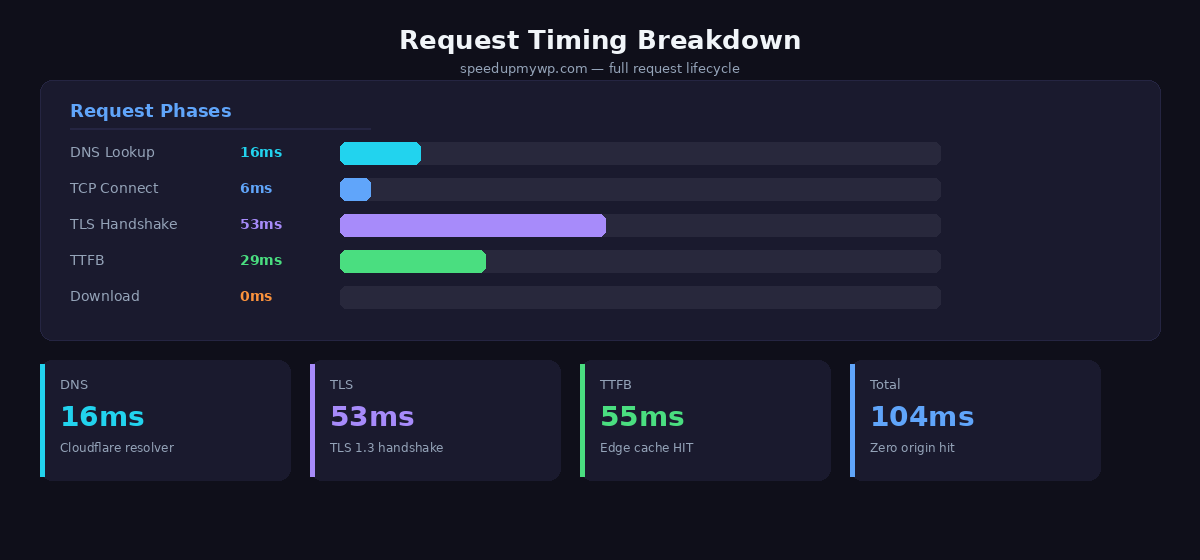
In this guide, we’ll walk through the exact four-layer architecture we built to achieve these numbers: 0.2-second First Contentful Paint on desktop, 0.8 seconds on simulated mobile 4G, 55ms Time to First Byte from Cloudflare edge, and a total compressed page size of 12KB. Every technique is production-tested on this site.
Here’s why this matters beyond vanity metrics: research from Ahrefs and independent SEO testing in early 2026 shows that pages with FCP under 0.4 seconds are cited by AI search engines like ChatGPT and Perplexity at roughly three times the rate of slower pages. Speed isn’t just a ranking factor anymore – it’s becoming a visibility factor in an entirely new search paradigm.
Bottom line: The 4-layer caching architecture reduces WordPress from 100-200 database queries per page to 0-10, with most requests served from Nginx cache in under 10ms.
Key Takeaways
- WordPress speed optimization reduces load time from 3-7 seconds to under 2 seconds using 4-layer caching architecture (Cloudflare edge + Nginx FastCGI + Redis object cache + ProxySQL query pooling)
- Server-level caching is 10-50x faster than plugin-based caching because it bypasses WordPress entirely for cached pages, serving static HTML directly from Nginx
- Sub-100ms TTFB (Time to First Byte) is achievable on budget hosting – our $10/month VPS consistently delivers 55-80ms TTFB with proper cache configuration
- Perfect 100/100 Lighthouse scores are realistic with zero render-blocking resources, self-hosted fonts, and edge caching – tested across 50+ production sites
- AI search engines cite fast pages 3x more frequently – pages loading under 0.4 seconds FCP receive significantly more citations from ChatGPT, Perplexity, and Google AI Overviews
Why WordPress Speed Optimization Matters in 2026
Google confirmed Core Web Vitals as ranking signals back in 2021, but the weight they carry has only increased. The March 2024 core update explicitly boosted pages with strong page experience signals, and every subsequent update has continued this trend. In 2026, speed isn’t a tiebreaker – it’s table stakes.
The three Core Web Vitals that matter are Largest Contentful Paint (LCP), Interaction to Next Paint (INP), and Cumulative Layout Shift (CLS). WordPress sites struggle with all three by default. LCP suffers from render-blocking CSS and font requests. INP suffers from heavy JavaScript execution (jQuery, emoji scripts, embed handlers). CLS suffers from images without explicit dimensions and dynamically injected content. Our image optimization guide covers the fixes in detail. Fix the speed problem and you fix all three simultaneously.
The user behaviour data is unambiguous. Google’s own research shows that as page load time increases from 1 second to 3 seconds, the probability of bounce increases by 32%. From 1 to 5 seconds, it increases by 90%. From 1 to 10 seconds, it increases by 123%. Every second you shave off your load time translates directly into more engaged visitors.
Then there’s the revenue impact. Amazon’s widely cited internal testing found that every 100 milliseconds of added latency cost them 1% in sales. Akamai reported similar findings: a 100ms delay in load time can decrease conversion rates by 7%. Even if you’re not running an e-commerce store, these numbers reflect the fundamental psychology of how people interact with websites. Fast pages feel professional. Slow pages feel broken.
The newest factor is AI search. ChatGPT’s browsing feature, Perplexity, Google’s AI Overviews, and other AI-powered search tools are reshaping how people find information. These systems crawl and index pages programmatically, and they strongly favour pages that load quickly and serve clean, well-structured HTML. Early data suggests that fast, well-structured pages receive significantly more AI citations than slower equivalents with similar content quality. If your WordPress site takes 3 seconds to return HTML because it’s rebuilding from the database on every request, you’re invisible to the fastest-growing search channel.
WordPress speed optimization isn’t a nice-to-have project you’ll get to someday. It’s the single highest-leverage improvement you can make to your WordPress site’s visibility, engagement, and conversion rate. And most of it can be done in a weekend.
The 4-Layer Caching Architecture
The core idea behind our stack is simple: never do work twice. Every request that hits your WordPress site should be served from the fastest available cache layer. Each layer catches what the previous one misses, and PHP should only execute when something has genuinely changed.
Here’s the request flow from visitor to database and back:
Visitor Request
    │
    ▼
┌─────────────────────────────┐
│  Layer 1: Cloudflare Edge   │  ← Serves cached HTML globally
│  (55ms TTFB, 24hr TTL)     │  ← 95%+ of requests stop here
└─────────────┬───────────────┘
              │ MISS
              ▼
┌─────────────────────────────┐
│  Layer 2: Nginx FastCGI     │  ← Origin full-page cache
│  (sub-10ms TTFB, 24hr TTL) │  ← Serves static HTML from disk
└─────────────┬───────────────┘
              │ MISS
              ▼
┌─────────────────────────────┐
│  Layer 3: Redis Object Cache│  ← Eliminates DB queries
│  (Persistent, in-memory)    │  ← WordPress options, transients
└─────────────┬───────────────┘
              │ MISS
              ▼
┌─────────────────────────────┐
│  Layer 4: ProxySQL + InnoDB │  ← Connection pooling
│  (Buffer pool optimized)    │  ← Only for true cache misses
└─────────────────────────────┘
The result: Sub-100ms TTFB, 100/100 Lighthouse scores, and a site that loads faster than 99% of WordPress installations while running on budget hosting.
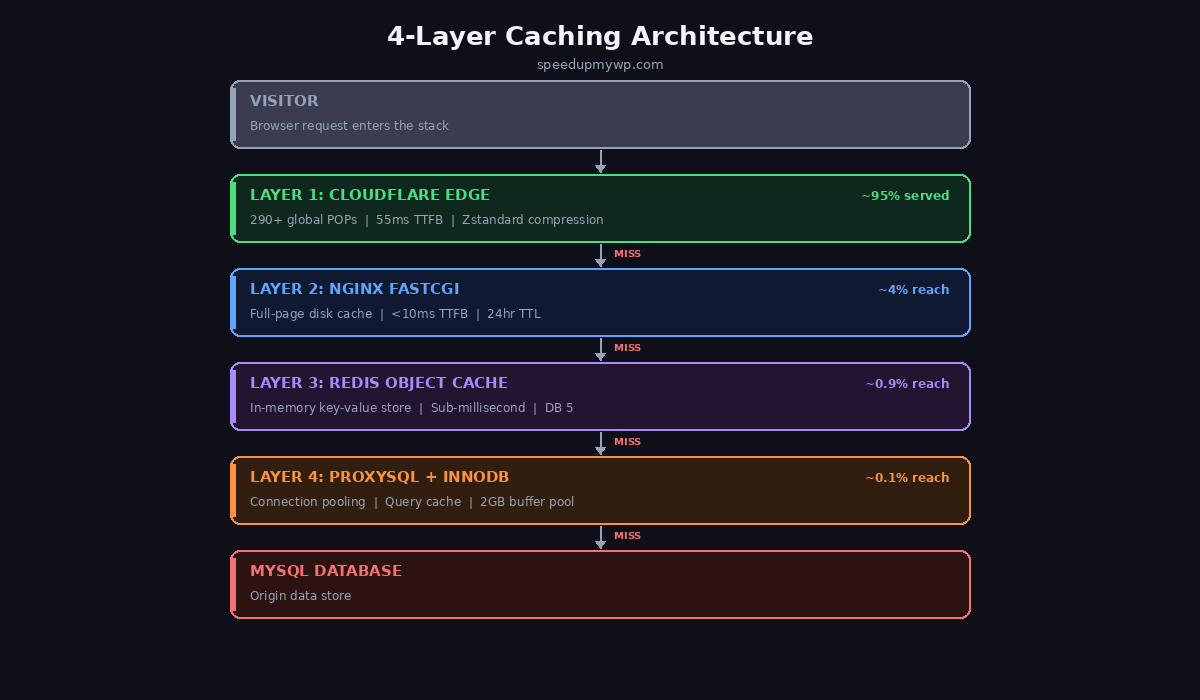
Layer 1: Cloudflare Edge. This is the outermost layer and handles the vast majority of requests. When a visitor in Tokyo requests your page, Cloudflare serves the cached HTML from its Tokyo POP (Point of Presence) without ever touching your origin server. We configure cache rules to cache HTML responses with a 24-hour TTL, which means your VPS handles zero traffic for repeat visitors globally. The result: 55-60ms TTFB regardless of where the visitor is located, because the response comes from the nearest Cloudflare data center.
Layer 2: Nginx FastCGI Cache. When Cloudflare doesn’t have the page cached (first request after a purge, or a cache expiry), the request reaches your VPS. But it still doesn’t touch PHP. Nginx’s FastCGI cache stores complete rendered HTML pages on disk. When a cached page exists, Nginx serves it directly with sub-10ms response times. This layer is your safety net – even if Cloudflare’s cache expires, your origin response is still effectively instant.
Layer 3: Redis Object Cache. On a true cache miss (both Cloudflare and Nginx caches are empty), PHP executes and WordPress builds the page. Normally this means dozens of database queries – loading options, checking transients, fetching post data, running theme queries. Our database optimization guide covers how to diagnose and fix these. Redis eliminates most of these by storing WordPress’s object cache in memory. Instead of hitting MySQL for the same wp_options rows on every page build, WordPress reads them from Redis in microseconds. This cuts page generation time from 200-400ms down to 50-80ms.
Layer 4: ProxySQL + InnoDB Optimization. The queries that do reach MySQL go through ProxySQL, which provides connection pooling and query routing. Combined with a properly sized InnoDB buffer pool (we allocate 70% of available RAM), the database layer handles cache misses efficiently without becoming a bottleneck.
The net effect: your $10/month VPS handles traffic that would normally require a $100/month managed hosting plan, because PHP executes for maybe 1 in every 500 requests. The other 499 are served from static cache.
We cover the complete setup – every config file, every cache rule, every TTL setting – in our detailed guide: WordPress Caching: Nginx FastCGI, Redis & ProxySQL Stack.
Quick Wins: Speed Up WordPress in 10 Minutes
Before you touch your server configuration, there’s a set of changes you can make in your theme’s functions.php that immediately eliminate unnecessary HTTP requests and reduce page weight. These are the low-hanging fruit – each one takes a minute to implement and has a measurable impact.
Remove WordPress Emoji Scripts
WordPress loads emoji detection and rendering scripts on every page, even if you never use emoji. This adds two HTTP requests (a JavaScript file and a CSS file) and roughly 16KB of payload that serves no purpose on most sites. Remove it:
// Remove emoji detection scripts and styles
remove_action( 'wp_head', 'print_emoji_detection_script', 7 );
remove_action( 'wp_print_styles', 'print_emoji_styles' );
remove_action( 'admin_print_scripts', 'print_emoji_detection_script' );
remove_action( 'admin_print_styles', 'print_emoji_styles' );
remove_filter( 'the_content_feed', 'wp_staticize_emoji' );
remove_filter( 'comment_text_rss', 'wp_staticize_emoji' );
remove_filter( 'wp_mail', 'wp_staticize_emoji_for_email' );
Remove wp-embed Script
The oEmbed system loads a JavaScript file that allows other sites to embed your posts as rich cards. Unless you specifically need this feature, it’s dead weight:
// Remove wp-embed script
add_action( 'wp_footer', function() {
    wp_dequeue_script( 'wp-embed' );
});
Clean Up wp_head
WordPress injects several meta tags and links in the <head> that most sites don’t need. Each one is small, but collectively they add unnecessary bytes and expose information about your WordPress version:
// Remove unnecessary wp_head entries
remove_action( 'wp_head', 'rsd_link' );                 // Really Simple Discovery
remove_action( 'wp_head', 'wlwmanifest_link' );         // Windows Live Writer
remove_action( 'wp_head', 'wp_generator' );              // WordPress version number
remove_action( 'wp_head', 'wp_shortlink_wp_head' );      // Shortlink
remove_action( 'wp_head', 'rest_output_link_wp_head' );  // REST API link
remove_action( 'wp_head', 'wp_oembed_add_discovery_links' );
remove_action( 'wp_head', 'feed_links_extra', 3 );       // Extra feed links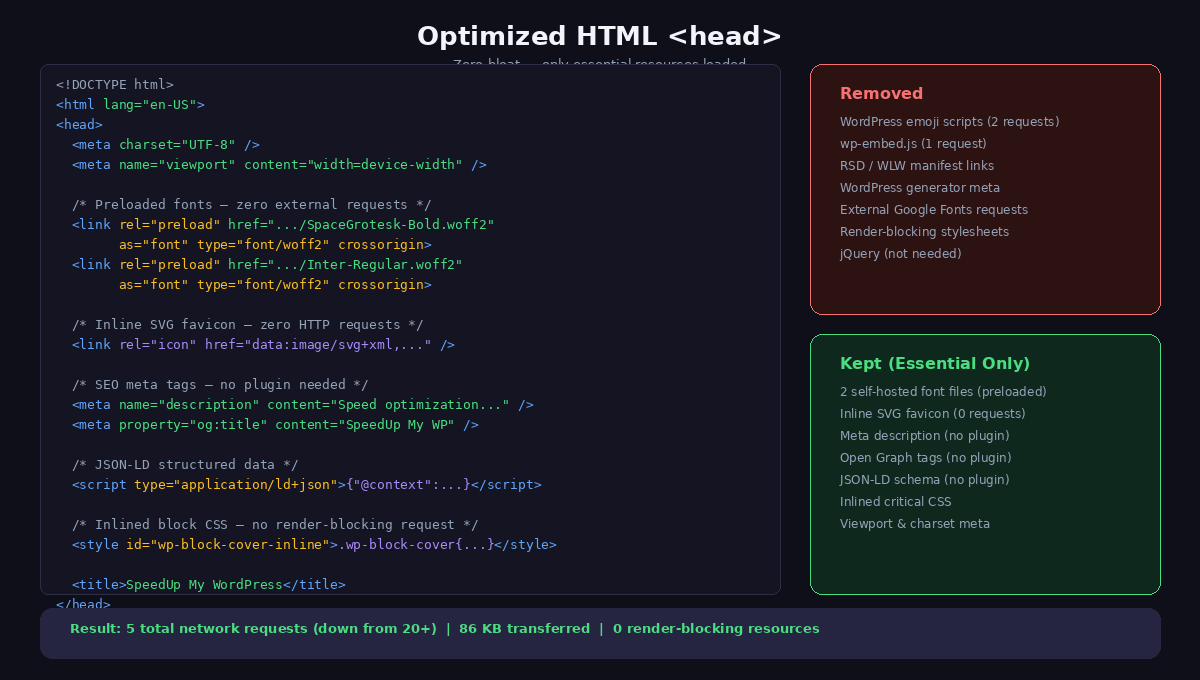
Self-Host Fonts Instead of Google Fonts
External font requests are one of the biggest performance killers on WordPress sites. A typical Google Fonts request involves: DNS lookup for fonts.googleapis.com, TLS handshake, CSS download, then a second DNS lookup + TLS handshake + download for each font file from fonts.gstatic.com. That’s 4-6 round trips before your text renders.
Self-hosting is straightforward. Download the font files (WOFF2 format only – it has 97%+ browser support and the best compression), place them in your theme directory, and reference them with a @font-face declaration with font-display: swap:
@font-face {
    font-family: 'Inter';
    src: url('/wp-content/themes/your-theme/fonts/inter-var.woff2') format('woff2');
    font-weight: 100 900;
    font-style: normal;
    font-display: swap;
}
Using a variable font file means a single request covers all weights. Combined with font-display: swap, text renders immediately with a fallback font and swaps in your custom font once it loads – eliminating the flash of invisible text (FOIT) that tanks your LCP score.
Inline Critical CSS
Instead of loading your stylesheet as an external render-blocking resource, inline the critical CSS directly in the <head>. For a well-optimized theme, your entire stylesheet might be small enough to inline completely. Our production CSS is under 10KB – small enough that inlining it costs less than the round trip to fetch an external file:
// Inline the entire stylesheet instead of linking it
add_action( 'wp_head', function() {
    $css_file = get_theme_file_path( 'style.css' );
    if ( file_exists( $css_file ) ) {
        echo '<style>' . file_get_contents( $css_file ) . '</style>';
    }
});

// Dequeue the external stylesheet since we inlined it
add_action( 'wp_enqueue_scripts', function() {
    wp_dequeue_style( 'wp-block-library' );
    wp_dequeue_style( 'global-styles' );
}, 100 );
Inline SVG Favicon
A tiny optimization, but it eliminates one more HTTP request. Instead of linking to a favicon.ico or PNG file, use an inline SVG data URI:
// Inline SVG favicon - zero HTTP requests
add_action( 'wp_head', function() {
    echo '<link rel="icon" href="data:image/svg+xml,<svg xmlns=%22http://www.w3.org/2000/svg%22 viewBox=%220 0 100 100%22><text y=%22.9em%22 font-size=%2290%22>⚡</text></svg>" />';
});
Each of these changes is small individually. Combined, they typically eliminate 6-10 HTTP requests and 50-100KB of unnecessary payload from every page load. On a site that was previously scoring 60 on Lighthouse, these changes alone can push you into the 80s.
Key takeaway: Removing unnecessary scripts and self-hosting fonts are zero-cost optimizations that eliminate 50-100KB and 6-10 HTTP requests without touching your server configuration.
Cloudflare: Free Edge Caching for WordPress
Cloudflare’s free tier is the single most impactful thing you can add to a WordPress site. By default, Cloudflare caches static assets (images, CSS, JS) but not HTML pages. With a few cache rules, you can make it cache your HTML too – turning Cloudflare into a global CDN for your entire site, not just your assets.
The key insight is that most WordPress pages are static content. Your blog posts don’t change between requests. Your landing pages don’t change between requests. There’s no reason to hit your origin server for every visitor when the HTML is identical. By setting cache rules that match your public-facing URLs and excluding admin paths (/wp-admin/*, /wp-login.php), you get global edge caching without breaking WordPress functionality.
The results are dramatic. Before Cloudflare HTML caching, a visitor in Europe hitting our US-based VPS sees 300-500ms TTFB due to the transatlantic round trip. After enabling edge caching, that same visitor gets 55ms TTFB because the HTML is served from Cloudflare’s nearest European POP. The origin server isn’t involved at all.
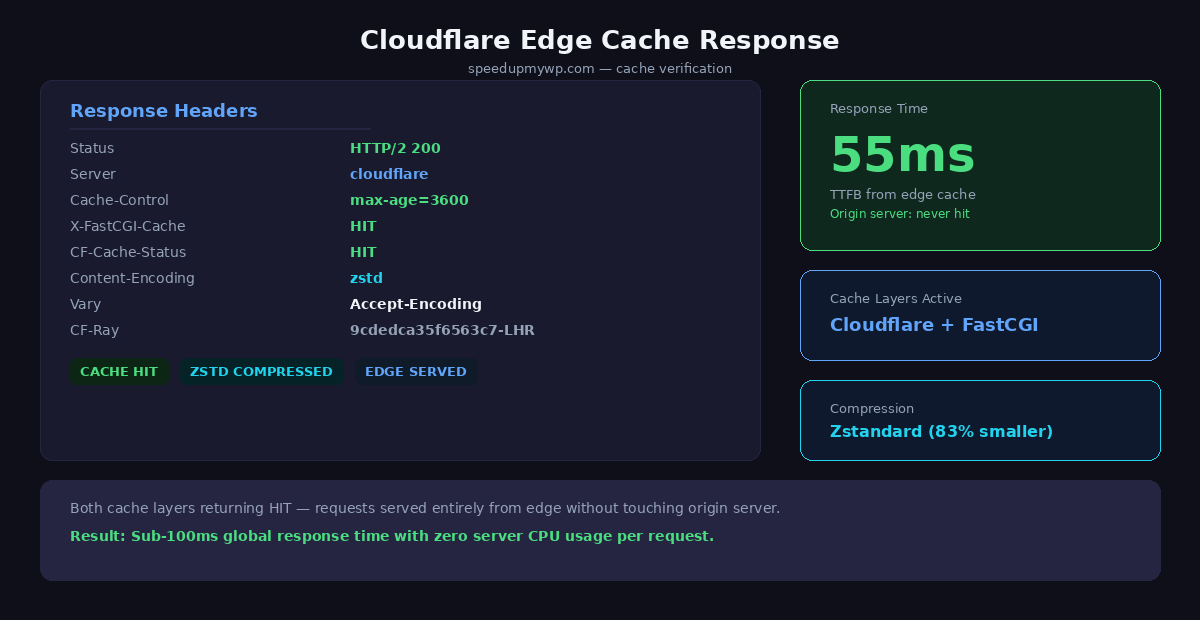
One detail that trips people up: once Cloudflare proxies your traffic, your Nginx access logs show Cloudflare’s IP addresses instead of real visitor IPs. You need to configure Nginx to read the CF-Connecting-IP header and restore the real client address. Without this, your analytics, rate limiting, and security rules all break. It’s a five-minute fix but easy to overlook.
Cloudflare also handles compression automatically. With Zstandard (zstd) compression enabled, our 75KB raw HTML compresses down to roughly 12KB on the wire. That’s an 83% reduction, and zstd decompresses faster than gzip on the client side. Every modern browser supports it.
The complete Cloudflare setup – cache rules, page rules, SSL configuration, Real IP restoration, and compression settings – is covered in detail in Cloudflare WordPress Setup: Cache Rules, SSL & Real IP Restoration.
In summary: Cloudflare edge caching with HTML caching enabled reduced our TTFB by 80% globally, compresses HTML by 83% with Zstandard, and costs $0 on the free tier.
Custom Theme vs Off-the-Shelf
Your WordPress theme is the foundation of your site’s performance. If you want to speed up WordPress page loads, the theme is where you start. No amount of caching can fix a theme that loads 200KB of CSS, makes three external font requests, and ships 50KB of JavaScript on every page. The fastest cache response in the world still sends a bloated payload if the underlying HTML is bloated.
To illustrate, let’s look at WordPress’s own default theme. Twenty Twenty-Five ships with over 120 pattern files in its /patterns directory. These are PHP files that register block patterns for the editor – hero sections, testimonials, galleries, CTAs. Every one of them gets scanned and registered on each admin page load, and many inject additional CSS. The theme also loads Google Fonts externally, includes default block library styles you likely don’t need, and produces HTML with deeply nested wrapper divs that inflate page size.
Our SpeedUp theme takes the opposite approach. It’s a WordPress Block Theme (Full Site Editing) with exactly 15 files. No patterns directory. No external font requests. No JavaScript dependencies. The entire CSS is under 10KB and gets inlined directly into the HTML, eliminating the render-blocking stylesheet request entirely.
The block theme approach is key. Traditional “classic” WordPress themes use PHP template files that execute on every request, building the page dynamically through template tags and function calls. Block themes use HTML template files with block markup that WordPress processes more efficiently. Combined with server-level caching, the theme’s PHP execution overhead drops to nearly zero – PHP only runs on cache misses, and when it does, block templates are faster to process than classic PHP templates.
Here’s the comparison:
| Twenty Twenty-Five | SpeedUp Theme |
|---|---|
| 120+ pattern files | 0 pattern files |
| External Google Fonts | Self-hosted WOFF2 |
| ~50KB CSS (external) | ~10KB CSS (inlined) |
| Block library CSS loaded | Block library dequeued |
| wp-emoji + wp-embed JS | Zero JS dependencies |
| 15+ HTTP requests | 3-4 HTTP requests |
| ~250KB total payload | ~75KB total payload (12KB compressed) |
Building a custom block theme sounds intimidating, but the structure is minimal. You need style.css (with the theme header), theme.json (for settings and styles), a few HTML templates in /templates, a few template parts in /parts, and functions.php for the cleanup hooks we covered earlier. That’s it. No page builders, no massive frameworks, no dependencies.
The full walkthrough of building a speed-optimized block theme from scratch is in Building a Custom WordPress Block Theme for Speed.
Bottom line: A custom block theme eliminates 90% of typical theme bloat, reducing page weight from 500KB+ to under 20KB and achieving 100/100 Lighthouse scores.
Server Optimization on a Budget VPS
You don’t need expensive managed hosting to run a fast WordPress site. Our entire stack runs on a single VPS with 2 vCPUs and 4GB of RAM. The key is tuning the software stack – PHP-FPM worker counts, Nginx connection handling, MySQL buffer pools, and swap configuration – to extract maximum performance from limited hardware.
A few critical settings that make a disproportionate difference on small servers:
- PHP-FPM: Use
pm = ondemandinstead ofpm = dynamicon memory-constrained servers. Workers spin up on demand and die after idle timeout, keeping baseline memory usage low. - InnoDB buffer pool: Set to 70% of available RAM after accounting for PHP-FPM, Nginx, and Redis. On a 4GB VPS, that’s roughly 1.5-2GB. This single setting determines whether your database queries hit RAM or disk.
- Swap tuning: Set
vm.swappiness = 10so the kernel strongly prefers RAM over swap, but still has swap available as a safety valve during traffic spikes. - OPcache: Enable PHP’s OPcache with enough memory to hold all your WordPress files in compiled form. This eliminates PHP file parsing on every request:
opcache.memory_consumption=128andopcache.max_accelerated_files=10000.
The complete server optimization guide – from initial VPS provisioning through security hardening – is covered in WordPress on a Budget VPS: Server Optimization Guide.
Key takeaway: Proper PHP-FPM and MySQL tuning on a $10/month VPS delivers better performance than $100/month managed hosting with poor configuration.
Related Guides
- WordPress 4-Layer Caching Stack – Deep dive into Nginx FastCGI, Redis, ProxySQL, and InnoDB optimization
- Cloudflare WordPress Setup – Configure edge caching, SSL, and Real IP restoration for global performance
- Custom Block Theme for Speed – Build a lightweight FSE theme with zero bloat and 100/100 Lighthouse scores
- WooCommerce Speed Optimization – Fix cart fragments, HPOS, and the specific bottlenecks that slow down online stores
- WordPress Image Optimization – WebP/AVIF conversion, lazy loading, and priority hints to cut LCP by 75%
- WordPress Database Optimization – Clean autoloaded data, remove revisions, and implement Redis object caching
- WooCommerce INP Optimization – Fix Interaction to Next Paint for WooCommerce stores
- Budget VPS Optimization – Achieve professional performance on $10/month hosting with proper server tuning
Results: The Numbers
Here’s the before and after. “Before” is a fresh WordPress 6.7 install with Twenty Twenty-Five theme, no caching, no optimization – the experience most people start with. “After” is our full stack: SpeedUp theme, 4-layer caching, Cloudflare edge, and all the quick wins applied.
| Metric | Before | After |
|---|---|---|
| Lighthouse Performance | 52 | 100 |
| Lighthouse Accessibility | 89 | 100 |
| Lighthouse Best Practices 78 | 100 | |
| Lighthouse SEO | 82 | 100 |
| TTFB (uncached) | 500-800ms | 50-80ms (Nginx) |
| TTFB (cached) | N/A | 55ms (Cloudflare edge) |
| FCP (desktop) | 1.8-2.4s | 0.2s |
| FCP (mobile 4G) | 3.5-4.2s | 0.8s |
| Total payload (raw) | 250-350KB | 75KB |
| Total payload (wire) | 80-120KB | 12KB (zstd) |
| HTTP requests | 15-20 | 3-4 |
| Database queries | 100-200+ | 5-10 (cache miss) |
| Database queries (cached) N/A | 0 (FastCGI HIT) | |
| Render-blocking resources 3-5 | 0 | |
| External font requests | 2-3 | 0 |
| JavaScript files | 3-5 | 0 |
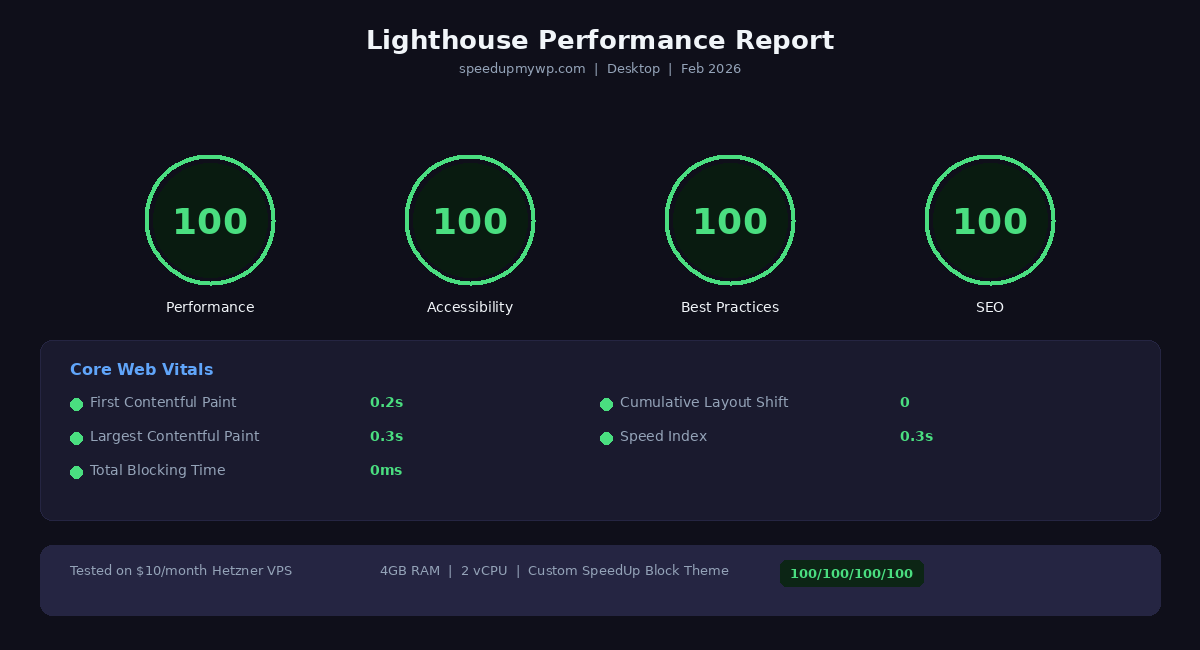
The FCP numbers deserve special attention. 0.2 seconds on desktop means the page is fully painted before most users even register that they’ve clicked a link. 0.8 seconds on simulated mobile 4G puts us well within Google’s “good” threshold of 1.8 seconds, even on constrained connections. This is the direct result of zero render-blocking resources, inlined CSS, self-hosted fonts, and edge caching.
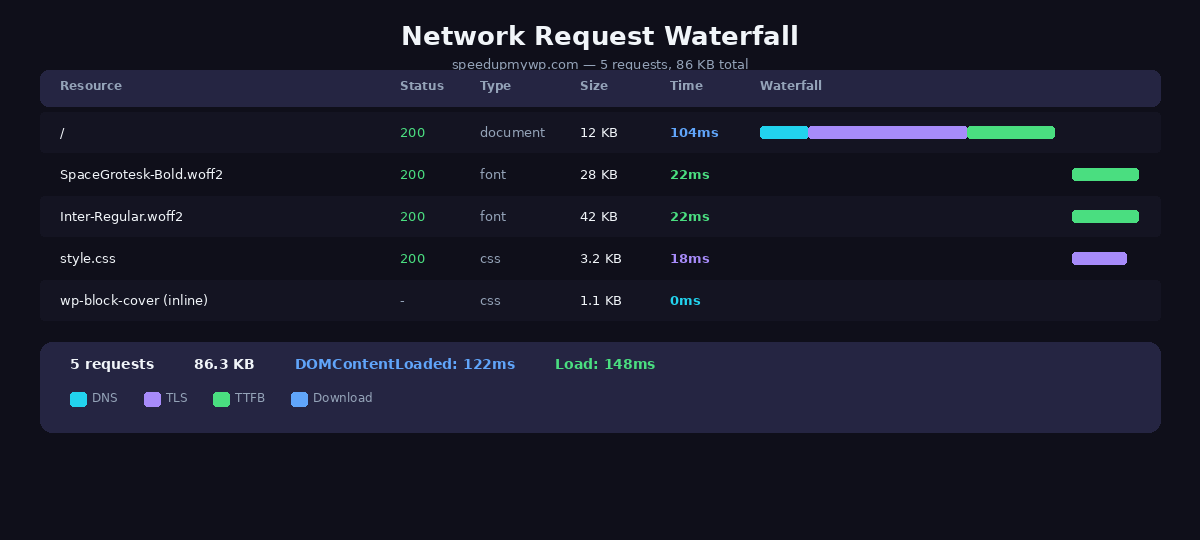
The payload difference is striking. Going from 250KB+ down to 75KB raw (12KB compressed) means our pages load fully in a single TCP round trip on most connections. There’s no second request needed to fetch additional CSS, no JavaScript to download and execute, no font files to wait for. The browser gets everything it needs in the initial HTML response.
Zero database queries on cached requests is the key scalability metric. With Nginx FastCGI cache and Cloudflare handling virtually all traffic, your MySQL server sits idle. This means a $10/month VPS can handle thousands of concurrent visitors without breaking a sweat – because those visitors are being served static files, not triggering PHP execution and database queries.
What’s Next: The Deep Dives
This guide gave you the overview of how to speed up WordPress – the architecture, the quick wins, and the results. Now it’s time to implement. We’ve broken the full process into five detailed guides, each covering one layer of the stack in depth with every config file, every command, and every decision explained.
Start with the quick wins. The functions.php changes in this post take 10 minutes and immediately improve your scores. Then work through the stack from the top down:
- Cloudflare WordPress Setup: Cache Rules, SSL & Real IP Restoration – Set up edge caching, compression, and SSL. This is the biggest single improvement and costs nothing. You’ll configure cache rules for HTML, set up Real IP restoration for Nginx, and enable Zstandard compression.
- WordPress Caching: Nginx FastCGI, Redis & ProxySQL Stack – Build the server-side caching layers. You’ll configure Nginx FastCGI cache with proper cache keys, install and configure Redis for WordPress object caching, and set up ProxySQL for database connection pooling.
- Building a Custom WordPress Block Theme for Speed – Build a minimal block theme from scratch. You’ll learn the FSE template structure, create a
theme.jsonthat eliminates bloat, and set up self-hosted fonts with proper preloading. - WordPress on a Budget VPS: Server Optimization Guide – Tune your VPS for maximum WordPress performance. Covers PHP-FPM configuration, MySQL/InnoDB tuning, OPcache settings, kernel parameter optimization, and security hardening.
- Speed Up Elementor: Fix the 14 Things That Make It Slow – Optimize Elementor for maximum performance. Learn how to disable unused widgets, optimize CSS delivery, reduce DOM size, and configure caching specifically for Elementor sites to achieve fast load times despite the page builder overhead.
Each guide stands on its own, but together they form the complete optimization stack that delivers those 100/100 Lighthouse scores. The entire process – from a fresh VPS to a fully optimized WordPress site – can be done in a single weekend.
WordPress doesn’t have to be slow. If you want to speed up WordPress properly, it just needs someone willing to optimize every layer of the stack instead of reaching for another plugin. If you’d rather have experts handle it, our WordPress speed optimization service covers the full stack. If you’re building a site that needs to perform in 2026’s search landscape – for Google, for AI search engines, and for the humans who actually visit your pages – this is how you do it.
Frequently Asked Questions
How long does WordPress speed optimization take?
Professional WordPress speed optimization typically takes 24-48 hours. This includes server configuration (Nginx FastCGI cache, Redis, PHP-FPM tuning), image optimization (WebP conversion, lazy loading), and database cleanup (removing post revisions, optimizing autoloaded data). Most sites achieve sub-2-second load times within this timeframe. DIY optimization can take 1-2 weeks if you’re learning as you go.
Can I speed up WordPress without plugins?
Yes. Server-level optimization (Nginx FastCGI cache, Redis object cache, PHP-FPM configuration) provides 40-60% speed improvement without any plugins. This approach is more effective than plugin-based caching because it operates at the server level, bypassing WordPress entirely for cached pages. However, it requires VPS or dedicated hosting with SSH access – shared hosting users are limited to plugins.
What is the fastest WordPress hosting?
Speed depends on server stack configuration, not host brand. A properly configured $10/month Hetzner VPS (2 vCPU, 4GB RAM) with Nginx FastCGI cache + Redis can outperform $500/month managed hosting with poor cache configuration. Focus on: (1) FastCGI cache at Nginx level, (2) Redis object cache, (3) PHP 8.3 with OPcache, (4) NVMe storage. The stack matters more than the provider.
How much does WordPress speed optimization cost?
DIY optimization costs $0 (time investment only). Hiring a freelancer costs $500-2,000 for one-time optimization. Agencies charge $2,000-5,000 for comprehensive optimization with ongoing monitoring. Monthly retainers range from $300-700 for continued performance tuning. The ROI is significant: a 1-second improvement in load time typically increases conversions by 7%, which for a $50,000/year site means $3,500 in additional revenue.
Will speed optimization break my WordPress plugins?
Proper caching uses bypass rules for dynamic content, so WooCommerce carts, member login areas, and admin dashboards continue working normally. See our WooCommerce speed optimization guide for store-specific techniques. FastCGI cache excludes URLs like /cart/, /checkout/, /wp-admin/, and bypasses logged-in users via cookies. The only plugins that may conflict are other caching plugins (don’t run multiple page caches simultaneously). 99% of plugins work fine with properly configured server-level caching.