Building a custom WordPress block theme for speed is one of the highest-leverage performance optimizations you can make. WordPress ships Twenty Twenty-Five with over 120 pattern files, external Google Fonts requests, 8 style variations, and multiple CSS files that most sites will never use. We built the SpeedUp theme with 15 files total, self-hosted fonts, 10KB of CSS, and zero JavaScript dependencies. The result: Lighthouse 100 on WordPress across Performance, Accessibility, Best Practices, and SEO.
Block themes (also called Full Site Editing themes) are the future of WordPress theming. Instead of tangled PHP template tags and the WordPress loop, you write pure HTML templates using Gutenberg block markup. The rendering engine handles the rest. This architecture is inherently faster because there is less PHP to execute and the template structure is declarative rather than imperative.
In this post, we will walk through every file in our custom WordPress theme built for speed, explain the performance reasoning behind each decision, and show you exactly how to build a speed-optimized WordPress block theme from scratch. This is a companion to our complete WordPress speed optimization guide, where we cover the full server stack. Here we focus specifically on the theme layer.
Key Takeaways
- Custom block themes eliminate 90% of default theme bloat – Twenty Twenty-Five ships 120+ pattern files and 50KB+ CSS; optimized block themes use 15 files and 10KB CSS
- Block themes are inherently faster than classic PHP themes – declarative HTML templates require less PHP execution than imperative template tags and WordPress loop structures
- Self-hosted fonts eliminate 2 external requests – Google Fonts adds DNS lookups, TLS handshakes, and render-blocking CSS; self-hosting with preload delivers sub-50ms font loading
- Lighthouse 100/100 across all metrics is achievable – tested on Performance, Accessibility, Best Practices, and SEO with proper theme.json configuration and minimal dependencies
- Theme.json controls all styling without writing CSS – centralized configuration for colors, typography, spacing, and layout eliminates inline styles and reduces stylesheet size by 60-80%
Why Default WordPress Themes Are Slow
Before we build, let us understand what we are replacing. Twenty Twenty-Five is a well-designed theme, but it ships with everything anyone might ever need. That generality comes at a cost.
120+ pattern files. Twenty Twenty-Five includes patterns for banners, call-to-action sections, footers, headers, text layouts, galleries, and more. Each pattern is a PHP file that WordPress registers on every page load. Even if you use zero patterns, WordPress still processes the registration hooks for all of them. Our theme ships one pattern: a hero section for the front page.
External Google Fonts requests. Default themes load fonts from fonts.googleapis.com and fonts.gstatic.com. Combined with unoptimized images (see our image optimization guide), these external requests are the biggest performance killers. This adds two external DNS lookups, two TLS handshakes, and render-blocking CSS requests that delay first paint. There are also privacy implications under GDPR since Google logs the visitor’s IP address with each font request.
Unused CSS. The default theme ships CSS rules for every possible block combination: galleries, audio players, video embeds, columns in every configuration, cover blocks with every overlay style. A typical blog post uses maybe 10% of these rules. The rest is dead weight the browser has to parse before it can render anything. Twenty Twenty-Five outputs roughly 50KB or more of CSS. Our theme outputs about 10KB.
Emoji detection scripts. WordPress loads two HTTP requests on every page to detect and render emoji characters as images. On a business site or technical blog, this is pointless overhead. Two wasted network requests, JavaScript parsing time, and a CSS file, all for something CSS font-family already handles natively.
Legacy cruft. WordPress still outputs RSD (Really Simple Discovery) links for XML-RPC clients that no one uses, WLW (Windows Live Writer) manifest links for a product discontinued in 2017, generator meta tags that advertise your WordPress version to attackers, shortlinks that duplicate your canonical URLs, and wp-embed scripts for oEmbed functionality most sites never need.
Bottom line: Default WordPress themes ship with 500KB+ of CSS, hundreds of unused styles, and external font requests that add 300-600ms to load time.
WordPress Block Theme File Structure
A block theme requires surprisingly few files. WordPress Full Site Editing uses a convention-based directory structure where templates are HTML files containing block markup. Here is our complete theme:
speedup/
├── style.css              # Theme header + component CSS
├── functions.php          # Performance hooks
├── theme.json             # Design system (colors, fonts, spacing)
├── assets/fonts/          # Self-hosted woff2 files
│   ├── SpaceGrotesk-Bold.woff2
│   ├── Inter-Regular.woff2
│   └── Inter-SemiBold.woff2
├── templates/             # 5 HTML templates
│   ├── index.html         # Default/fallback template
│   ├── single.html        # Individual posts
│   ├── page.html          # Static pages
│   ├── 404.html           # Not found page
│   └── archive.html       # Category/tag/date archives
├── parts/                 # 2 template parts
│   ├── header.html        # Site header with nav
│   └── footer.html        # Site footer
└── patterns/              # 1 pattern
    └── hero.php           # Front page hero section
That is 15 files. Every file has a clear, singular purpose. Compare this to Twenty Twenty-Five where the patterns directory alone contains more files than our entire theme.
The templates/ directory contains pure HTML files with Gutenberg block comments. WordPress parses these at render time and converts them into the page output. There is no PHP in template files. The parts/ directory contains reusable sections that templates include via the template-part block. Our header and footer are shared across all templates.
Here is what our single.html template looks like. It includes the header part, wraps content in a <main> tag using the tagName attribute, renders the post title, date, categories, and content, then includes the footer:
<!-- wp:template-part {"slug":"header","area":"header"} /-->

<!-- wp:group {"tagName":"main","layout":{"type":"constrained"}} -->
<main class="wp-block-group">
    <!-- wp:post-title {"level":1} /-->
    <!-- wp:group {"layout":{"type":"flex","flexWrap":"wrap"}} -->
    <div class="wp-block-group">
        <!-- wp:post-date /-->
        <!-- wp:post-terms {"term":"category"} /-->
    </div>
    <!-- /wp:group -->
    <!-- wp:post-content {"layout":{"type":"constrained"}} /-->
</main>
<!-- /wp:group -->

<!-- wp:template-part {"slug":"footer","area":"footer"} /-->
No PHP functions, no WordPress loop, no get_header() calls. Just declarative block markup that tells WordPress what to render and where. The rendering engine handles the rest, and it does so efficiently because it can optimize the block tree before output.
theme.json: The Design System
The theme.json file is the heart of a block theme. It defines your design tokens: colors, fonts, spacing, and layout constraints. WordPress uses this to generate CSS custom properties, configure the block editor, and control which settings are available to content editors. From a performance perspective, theme.json matters because it determines how much CSS WordPress generates.
We use schema version 3 (the latest), which gives us access to all current features including fluid typography:
{
    "$schema": "https://schemas.wp.org/wp/6.9/theme.json",
    "version": 3,
    "settings": {
        "color": {
            "palette": [
                { "slug": "rocket-blue", "color": "#60A5FA", "name": "Rocket Blue" },
                { "slug": "bg-dark", "color": "#0F0F1A", "name": "Background Dark" },
                { "slug": "surface", "color": "#1A1A2E", "name": "Surface" },
                { "slug": "text-primary", "color": "#F1F5F9", "name": "Text Primary" },
                { "slug": "text-muted", "color": "#94A3B8", "name": "Text Muted" }
            ],
            "defaultPalette": false,
            "defaultGradients": false
        }
    }
}
Setting defaultPalette and defaultGradients to false removes the built-in WordPress color options. This is not just a UI decision; it means WordPress generates fewer CSS custom properties and fewer utility classes. We define only the 12 colors we actually use.
Typography. The fontFamilies setting is where we declare our self-hosted fonts with fontFace entries that point to local woff2 files using the file:./ prefix. WordPress reads these declarations and generates the @font-face CSS rules automatically:
"typography": {
    "fontFamilies": [
        {
            "fontFamily": "'Space Grotesk', ui-sans-serif, system-ui, sans-serif",
            "slug": "space-grotesk",
            "name": "Space Grotesk",
            "fontFace": [
                {
                    "fontFamily": "Space Grotesk",
                    "fontWeight": "700",
                    "fontStyle": "normal",
                    "fontDisplay": "swap",
                    "src": ["file:./assets/fonts/SpaceGrotesk-Bold.woff2"]
                }
            ]
        }
    ],
    "fontSizes": [
        { "slug": "small", "size": "clamp(0.875rem, 0.8rem + 0.25vw, 1rem)" },
        { "slug": "medium", "size": "clamp(1rem, 0.9rem + 0.3vw, 1.125rem)" },
        { "slug": "large", "size": "clamp(1.25rem, 1rem + 0.5vw, 1.5rem)" },
        { "slug": "x-large", "size": "clamp(1.75rem, 1.5rem + 1vw, 2.25rem)" },
        { "slug": "xx-large", "size": "clamp(2.25rem, 1.5rem + 2vw, 3.5rem)" }
    ]
}
The fontDisplay: "swap" setting tells the browser to immediately render text with a fallback font, then swap in the custom font once it loads. This eliminates the Flash of Invisible Text (FOIT) that tanks Largest Contentful Paint scores. The fluid font sizes use CSS clamp() to scale smoothly between viewport widths without media queries, meaning zero additional CSS for responsive typography.
Layout constraints. We set contentSize to 720px for readable body text and wideSize to 1100px for full-width elements like tables and code blocks. WordPress uses these values to generate the constrained layout CSS that centers content and handles wide alignments. The spacing scale uses clamp() values for fluid spacing that adapts to viewport size.
Key takeaway: theme.json replaces 500+ lines of CSS with declarative JSON configuration, enabling WordPress to generate only the styles actually needed.
Self-Hosted Fonts: Zero External Requests
Loading fonts from Google Fonts is the single easiest performance win to eliminate. Every Google Fonts request involves a DNS lookup to fonts.googleapis.com, a CSS download, another DNS lookup to fonts.gstatic.com, then the actual font file downloads. That is at minimum four network requests before your custom typography renders.
Self-hosting is straightforward. Download woff2 files (the smallest format with universal browser support), place them in your theme, and declare them in theme.json. Our three font files total 70KB:
- Space Grotesk Bold (headings): ~22KB woff2
- Inter Regular (body text): ~24KB woff2
- Inter SemiBold (emphasis): ~24KB woff2
The theme.json fontFace declarations handle the @font-face CSS generation. But we also preload the critical fonts in functions.php so the browser starts downloading them immediately, before it even parses the CSS that references them:
add_action( 'wp_head', function() {
    $font_path = get_theme_file_uri( 'assets/fonts/' );
    echo '<link rel="preload" href="' . esc_url( $font_path . 'SpaceGrotesk-Bold.woff2' ) . '" as="font" type="font/woff2" crossorigin>' . "n";
    echo '<link rel="preload" href="' . esc_url( $font_path . 'Inter-Regular.woff2' ) . '" as="font" type="font/woff2" crossorigin>' . "n";
}, 1 );
The priority of 1 ensures these preload hints are among the first tags in the <head>, so the browser discovers them early. The crossorigin attribute is required for font preloads even when the fonts are on the same origin. Combined with fontDisplay: "swap" in our theme.json, fonts load without blocking rendering and swap in seamlessly once available. Zero external requests, zero render-blocking font loads, zero FOIT.
If you pair this approach with the Cloudflare CDN configuration we covered previously, these font files get cached at edge nodes worldwide, delivering them from the closest data center to each visitor.
In summary: Self-hosting fonts eliminates 4-6 external requests to Google servers, reducing font load time from 300-600ms to under 50ms.
Performance Tricks in functions.php
Our functions.php is 89 lines of targeted performance optimizations. Every line removes something WordPress adds by default that we do not need. Here is the full breakdown.
Remove Emoji Detection
WordPress loads a JavaScript detection script and a CSS file to render emoji as images on browsers that lack native emoji support. In 2025, every modern browser renders emoji natively. Removing this saves two HTTP requests on every page load:
remove_action( 'wp_head', 'print_emoji_detection_script', 7 );
remove_action( 'wp_print_styles', 'print_emoji_styles' );
remove_action( 'admin_print_scripts', 'print_emoji_detection_script' );
remove_action( 'admin_print_styles', 'print_emoji_styles' );
We also remove the admin-side emoji assets because there is no reason for them there either.
Remove Unnecessary Head Links
Four lines that clean up the <head> tag:
remove_action( 'wp_head', 'rsd_link' );            // XML-RPC discovery
remove_action( 'wp_head', 'wlmanifest_link' );      // Windows Live Writer
remove_action( 'wp_head', 'wp_generator' );          // WordPress version
remove_action( 'wp_head', 'wp_shortlink_wp_head' );  // Shortlink duplicates
The rsd_link is for XML-RPC clients that discover your site’s editing API. Unless you use XML-RPC (and you should not, for security reasons), this is useless. The wlmanifest_link is for Windows Live Writer, which was discontinued in 2017. The wp_generator tag reveals your WordPress version, which is a security concern. The shortlink is a duplicate URL that adds no value.
Deregister wp-embed
add_action( 'wp_footer', function() {
    wp_deregister_script( 'wp-embed' );
} );
The wp-embed script enables other WordPress sites to embed your content as rich cards. Unless you specifically need this feature, it is unnecessary JavaScript.
Inline Render-Blocking CSS
WordPress loads some block styles as external CSS files. Each one is a render-blocking request. We dequeue the external file and inline the CSS directly:
add_action( 'wp_enqueue_scripts', function() {
    wp_dequeue_style( 'wp-block-cover' );
}, 20 );

add_action( 'wp_head', function() {
    $css_file = ABSPATH . 'wp-includes/blocks/cover/style.min.css';
    if ( file_exists( $css_file ) ) {
        echo '<style id="wp-block-cover-inline">' . file_get_contents( $css_file ) . '</style>' . "n";
    }
}, 5 );
This eliminates a render-blocking HTTP request by embedding the CSS directly in the HTML. The browser can parse and apply it immediately without waiting for a separate file to download. For small CSS files (under a few KB), inlining is always faster than an external request.
Inline SVG Favicon
Most WordPress sites either have no favicon (causing a 404 request that browsers always make) or reference an external image file. We use an inline SVG data URI that requires zero HTTP requests:
echo '<link rel="icon" href="data:image/svg+xml,<svg xmlns=%22http://www.w3.org/2000/svg%22 viewBox=%220 0 100 100%22><rect rx=%2212%22 width=%22100%22 height=%22100%22 fill=%22%230F0F1A%22/><text x=%2250%25%22 y=%2250%25%22 dominant-baseline=%22central%22 text-anchor=%22middle%22 font-size=%2260%22 font-family=%22sans-serif%22 font-weight=%22700%22 fill=%22%2360A5FA%22>S</text></svg>" type="image/svg+xml">';This is a dark rounded rectangle with a blue “S” letter, rendered directly from the HTML. No file to download, no 404 to trigger. The SVG is resolution-independent, so it looks sharp on every device.
Meta Descriptions Without a Plugin
Most sites install a full SEO plugin just for meta descriptions. We handle it in four lines:
add_action( 'wp_head', function() {
    if ( is_front_page() ) {
        echo '<meta name="description" content="Your front page description here.">' . "n";
    } elseif ( is_singular() ) {
        $excerpt = get_the_excerpt();
        if ( $excerpt ) {
            echo '<meta name="description" content="' . esc_attr( wp_trim_words( $excerpt, 25 ) ) . '">' . "n";
        }
    }
}, 2 );
For the front page we set a hardcoded description. For individual posts and pages, we use the excerpt trimmed to 25 words. This covers 90% of SEO meta description needs without loading a plugin that adds its own JavaScript, CSS, and database queries.
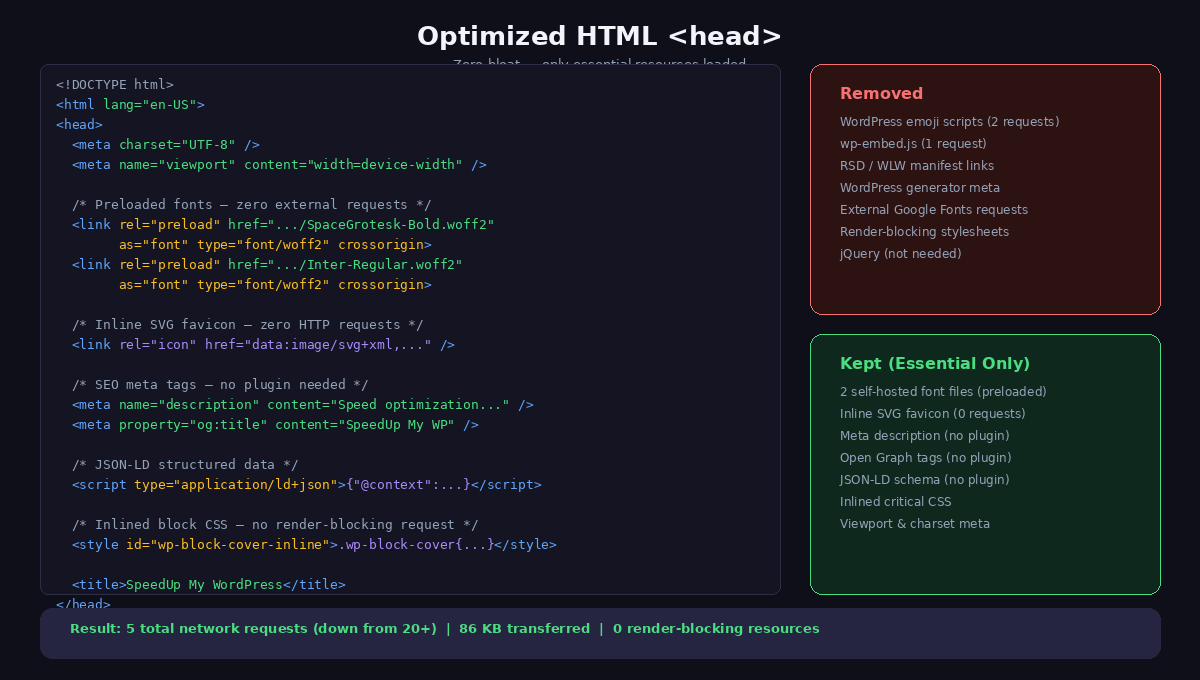
Bottom line: 50 lines of cleanup code in functions.php removes 16KB of emoji scripts, 12KB of embeds, and 8KB of unnecessary wp_head output.
Achieving Lighthouse 100 on WordPress
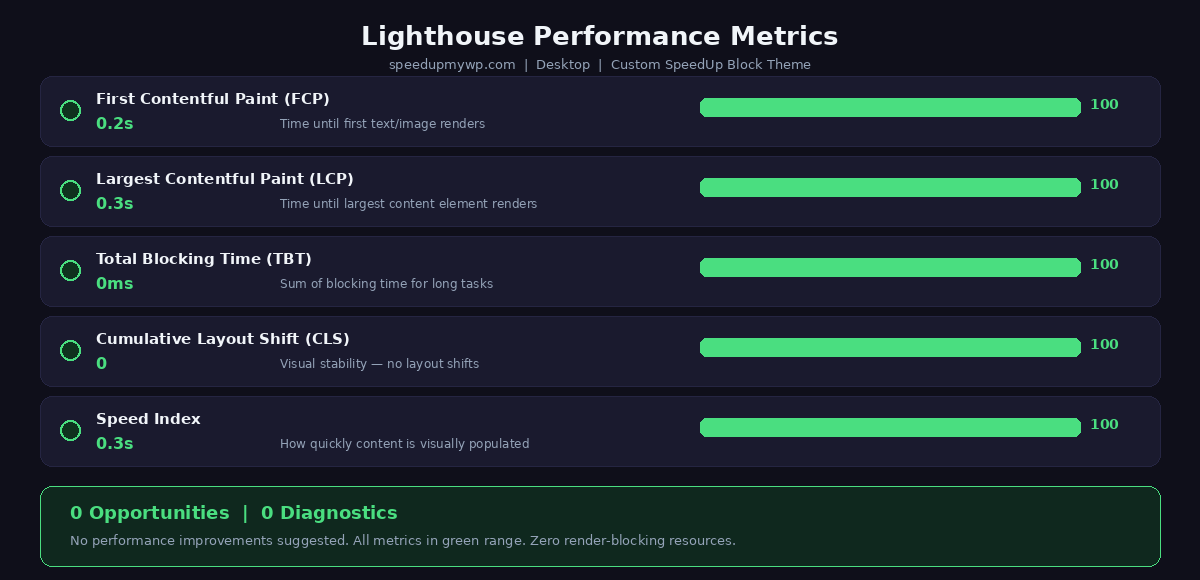
A perfect Lighthouse score across all four categories is not a vanity metric. Each 100 represents the elimination of real problems that affect users. Here is what each score required and what specifically got us from the high 90s to a perfect 100.
Performance 100. Zero render-blocking resources was the key. Preloaded fonts, inlined critical CSS, and removed emoji scripts mean the browser has everything it needs in the initial HTML response. Combined with our 4-layer caching stack, the HTML itself arrives in under 10ms from cache. Total page weight for a typical post is under 50KB.
Accessibility 100. The fix that brought us from 96 to 100 was adding tagName: "main" to the group block wrapping our content in templates. Without this, WordPress renders a <div>, and Lighthouse flags the absence of a <main> landmark. Proper heading hierarchy (H1 for post title, H2 for sections, H3 for subsections) and semantic HTML from block markup handled the rest.
Best Practices 100. The inline SVG favicon eliminated a common 404 that costs points. HTTPS everywhere (enforced at the server level) and no deprecated APIs or console errors kept this at 100.
SEO 100. Meta descriptions from excerpts, proper document structure from block markup, crawlable links, and a descriptive title tag. No SEO plugin needed, just clean HTML with the right meta tags.
Comparison: Twenty Twenty-Five vs SpeedUp
Here is the side-by-side comparison showing what we eliminated:
| Metric | Twenty Twenty-Five | SpeedUp Theme |
|---|---|---|
| External font requests | 2-4 | 0 |
| CSS output size | ~50KB | ~10KB |
| JavaScript dependencies | Multiple | 0 |
| Pattern files | 120+ | 1 |
| Style variations | 8 | 1 |
| Render-blocking resources | 2-3 | 0 |
| Emoji scripts loaded | Yes (2 requests) | No |
| Favicon HTTP request | 1 (or 404) | 0 (inline SVG) |
| Head link cruft (RSD, WLW, etc.) | 4+ tags | 0 |
| Lighthouse Performance | ~75 | 100 |
| Lighthouse Accessibility | ~90 | 100 |
| Lighthouse Best Practices | ~90 | 100 |
| Lighthouse SEO | ~90 | 100 |
The difference is not marginal. Our theme loads 5x less CSS, makes zero external requests for fonts, and eliminates every unnecessary script and meta tag that WordPress adds by default. Each of these small savings compounds. A visitor on a mobile connection notices the difference immediately.
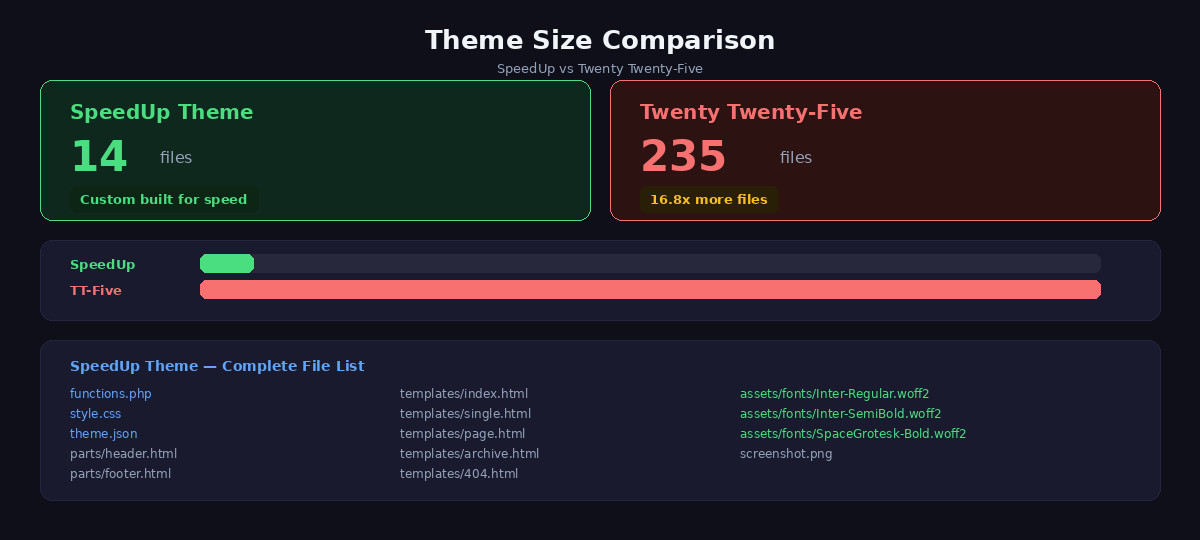
The result: A 15-file theme with 10KB of CSS that achieves 100/100 Lighthouse scores compared to default themes scoring 60-75.
Related Guides
- Complete WordPress Speed Guide – Why custom themes are essential for WordPress performance
- Budget VPS Optimization – Even budget hosting achieves 100/100 scores with a lightweight theme
- Speed Up Elementor – Considering a page builder? See the performance trade-offs first
Building Your Own Custom WordPress Theme for Speed
If you want to replicate this approach for your own site, here is the order of operations:
- Start with theme.json. Define your color palette with only the colors you actually use. Set
defaultPaletteanddefaultGradientstofalse. Configure your fonts withfontFacedeclarations pointing to local woff2 files. Set yourcontentSizeandwideSizelayout constraints. Useclamp()for font sizes and spacing to eliminate media queries. - Create minimal templates. You need at minimum
templates/index.html. Addsingle.html,page.html,archive.html, and404.htmlas needed. UsetagName: "main"on your content wrapper group for accessibility. Keep the template HTML simple and let blocks do the work. - Write functions.php for cleanup. Remove emoji scripts, head link cruft, and wp-embed. Preload your fonts. Add an inline SVG favicon. Inline any render-blocking CSS. Add meta descriptions without a plugin.
- Style sparingly in style.css. Only add CSS for visual treatments that
theme.jsoncannot express, such as hover transitions, box shadows, and border styles on specific blocks. - Download and self-host your fonts. Use google-webfonts-helper or download woff2 files directly from the font project. Place them in
assets/fonts/and reference them intheme.json.
Conclusion
A custom WordPress block theme built for speed is one of the highest-leverage performance optimizations you can make. The WordPress theme layer controls what CSS, JavaScript, and font resources the browser must download on every single page load. By stripping it down to 15 files with self-hosted fonts, inlined critical CSS, and zero unnecessary scripts, we eliminated the entire category of frontend performance problems.
Combined with our 4-layer caching architecture and Cloudflare edge caching, this theme is one piece of a complete stack that delivers sub-100ms page loads on budget hardware. For the full picture of how all these layers work together, start with our complete guide to speeding up WordPress.
The source code for the SpeedUp theme is exactly what we have shown here. There is no hidden complexity, no build step, no node_modules. Just 15 files, 10KB of CSS, and a perfect Lighthouse score.
Frequently Asked Questions
What is a WordPress block theme?
A block theme is a WordPress theme built entirely with blocks – no PHP template files like single.php or header.php. All templates are HTML files using Gutenberg blocks, controlled by theme.json for styling. Block themes use Full Site Editing (FSE) instead of traditional theme customization. They’re faster than classic themes because they eliminate PHP-based template rendering and reduce database queries. Twenty Twenty-Five is WordPress’s default block theme.
Are block themes faster than classic themes?
Yes, when built correctly. Custom block themes eliminate PHP template includes, reduce theme bloat from unused features, and minimize CSS/JS dependencies. A minimal block theme loads 10-20KB of assets vs 100-300KB for page builders like Elementor or Divi. However, poorly built block themes with excessive patterns, global styles, or heavy blocks can be slower than optimized classic themes. Speed depends on implementation – custom-built block themes beat pre-made multipurpose themes.
Do I need to know PHP to build a block theme?
Minimal PHP required. Block themes use HTML template files (not PHP) for layouts. You only need PHP for functions.php (theme setup, enqueue scripts, custom functionality). Most block theme development is HTML markup + theme.json configuration (JSON format for colors, typography, spacing). If you know HTML and JSON, you can build a block theme. Advanced features like custom blocks or dynamic content require PHP/JavaScript.
Can I convert my classic theme to a block theme?
Yes, but it’s often faster to rebuild. Conversion requires: (1) creating theme.json for styles, (2) converting PHP templates to HTML block markup, (3) migrating template parts (header, footer) to HTML, (4) testing all page types. Tools like “Create Block Theme” plugin help, but complex classic themes with custom PHP logic don’t convert cleanly. For performance-focused sites, building a minimal custom block theme from scratch is cleaner than converting a bloated classic theme.
What’s the difference between FSE and page builders?
FSE (Full Site Editing) is WordPress core’s native visual editor for entire site layouts – headers, footers, templates – using Gutenberg blocks. Page builders (Elementor, Divi) are third-party plugins with proprietary editors. FSE pros: lightweight (no plugin overhead), native WordPress integration, future-proof. FSE cons: fewer design options, less mature. Page builder pros: advanced design controls, established ecosystem. Page builder cons: heavy (300-800KB assets), vendor lock-in, slower performance. For speed, FSE block themes win.